Set up self-hosted LLMs for local development
I’ve been gradually adding local LLMs to my daily workflow, and now I’ve got a setup that runs AI agents right inside Zed Editor for coding. This post walks through the whole stack — from GPU acceleration to editor integration — so you can set something similar up for yourself.
Why local?
Running LLMs locally keeps your data private, saves you from API bills, and lets you try out any model whenever you want. With modern AMD GPUs and ROCm support in Ollama, the performance gap with cloud services is basically gone for most dev work. If you’re on NVIDIA, the setup is nearly identical — just swap the rocm tag for the standard Ollama image. I run Linux everywhere (PC and laptop alike), and this Docker/CLI setup works great.
Hardware
My setup is based on the same machine I used in my previous benchmark posts:
- Motherboard: B550 AORUS ELITE AX V2
- GPU: AMD Radeon AI PRO R9700 (32 GB VRAM, RDNA 4)
- CPU: AMD Ryzen 9 5950X (16 cores / 32 threads)
- RAM: 64 GB DDR4-2666
- Storage: NVMe Samsung SSD 970 EVO Plus 1TB (x2)
BIOS settings:
- Above 4G Decoding: Enabled
- Re-Size BAR Support: Auto
- CSM: Disabled
Tools of the stack
Zed Editor
I switched from VS Code to Zed because it natively supports custom models for AI agents and edit predictions. The Zed Agent plays much nicer with a local Ollama backend than Copilot ever did — I’d get random errors in VS Code when Copilot tried to work with local models.
Zed also lets you bring your own edit prediction model, while VS Code locks you into their proprietary one unless you hunt down custom extensions. The coolest part is that Zed has its own Zeta model, which you can run locally. Instead of just autocomplete-style suggestions that append after your cursor (like qwen2.5-coder), it suggests actual diffs that rewrite parts of your code.
Ollama
For serving models, I went with Ollama instead of alternatives like LM Studio. The dealbreaker is that Zed’s thinking mode switcher only works with Ollama — not OpenAI-compatible APIs or LM Studio’s API. Ollama also has solid ROCm support, and I didn’t notice any performance difference compared to LM Studio. Plus, I’m comfortable with CLI tools and Docker, so managing everything from the terminal feels natural.
I did give LM Studio a shot, but it just doesn’t mesh well with Zed. Without the thinking mode switcher, you can’t use one model for both chat/agents (thinking on) and inline transforms (thinking off). And their OpenAI-compatible API also had hiccups with Zed.
Browser MCP
When I need the AI to actually use a browser — for testing or research — I hook up Playwright MCP or Chrome DevTools MCP. The config is shown below.
Models
I run a curated selection of models, each optimized for a specific purpose:
- Qwen 3.8 27B (
qwen3.8:27b-q4_K_M)- Role: Main coding and AI agents
- Quantization: Q4_K_M
- Notes: Best quality among models of similar size. Uses MTP (Multi-Token Prediction) for a significant speed boost without losing quality.
- Zeta 2.1 (
hf.co/mradermacher/zeta-2.1-GGUF:Q4_K_M)- Role: Code edit predictions in Zed
- Quantization: Q4_K_M
- Notes: Open-source model designed for Zed AI. Unlike simple autocompletion, it suggests diffs for your code instead of just appending text after your cursor.
Docker Compose setup
Everything runs in Docker to keep things clean and reproducible. Here’s the docker-compose.yml:
services:
  ollama:
    image: ollama/ollama:rocm
    restart: unless-stopped
    container_name: ollama
    tty: true
    devices:
      - /dev/kfd
      - /dev/dri
    ports:
      - 11434:11434
    volumes:
      - ollama:/root/.ollama
    environment:
      - OLLAMA_CONTEXT_LENGTH=131072
      - OLLAMA_KV_CACHE_TYPE=q8_0
      - OLLAMA_FLASH_ATTENTION=1
      - OLLAMA_MAX_LOADED_MODELS=1
      - OLLAMA_NUM_PARALLEL=1
      - OLLAMA_KEEP_ALIVE=15m
volumes:
  ollama:
Start it with docker compose up -d.
The following environment variables control Ollama’s behavior and resource usage:
| Variable | Default | My Value | Purpose |
|---|---|---|---|
OLLAMA_CONTEXT_LENGTH |
4096 |
131072 |
Maximum context window by default. |
OLLAMA_KV_CACHE_TYPE |
f16 |
q8_0 |
Key-Value cache quantization for storing context in memory. |
OLLAMA_FLASH_ATTENTION |
0 |
1 |
Reduces VRAM usage by 30–50% in context-heavy scenarios. |
OLLAMA_MAX_LOADED_MODELS |
3 |
1 |
Maximum distinct LLMs kept in memory simultaneously. |
OLLAMA_NUM_PARALLEL |
1 |
1 |
Number of concurrent requests. |
OLLAMA_KEEP_ALIVE |
5m |
15m |
How long a model stays loaded after its last use before being unloaded. |
Set up models
To get the most out of these models for coding, you’ll want to tweak some defaults.
Qwen 3.8 27B
Pull the model from the Ollama library and run it:
docker exec -it ollama ollama run qwen3.8:27b-q4_K_M
Then tweak parameters and save it as qwen3.8:27b-code:
/set parameter num_ctx 131072
/set parameter num_predict -1
/set parameter draft_num_predict 2
/set parameter num_batch 1024
/set parameter temperature 0.6
/set parameter top_p 0.95
/set parameter top_k 20
/set parameter min_p 0
/set parameter presence_penalty 0
/set parameter repeat_penalty 1
/save qwen3.8:27b-code
A draft_num_predict value of 2 shows the best performance for MTP models.
Zeta 2.1 8B
Pull from Hugging Face:
docker exec -it ollama ollama run hf.co/mradermacher/zeta-2.1-GGUF:Q4_K_M
Then save it as zeta-2.1:
/set parameter num_ctx 4096
/set parameter num_predict 64
/set parameter num_batch 1024
/save zeta-2.1
Setting up Zed Editor
Next, wire up the models in Zed. Head to Menu -> Open Settings File and add these configs:
LLM Provider (Agent & Chat)
Enable Ollama provider:
{
  "language_models": {
    "ollama": {
      "api_url": "http://127.0.0.1:11434"
    }
  }
}
Inline assistant
Enable inline assistant without thinking:
{
  "agent": {
    "inline_assistant_model": {
      "provider": "ollama",
      "model": "qwen3.8:27b-code",
      "enable_thinking": false
    }
  }
}
Edit Predictions
For code edit suggestions powered by Zeta 2.1, you need to use an OpenAI Compatible API provider instead of the Ollama provider directly — this is a current limitation in Zed. This configuration enables real-time diff suggestions as you type, rather than simple completions appended after your cursor.
{
  "edit_predictions": {
    "provider": "open_ai_compatible_api",
    "mode": "eager",
    "open_ai_compatible_api": {
      "prompt_format": "zeta2_1",
      "model": "zeta-2.1",
      "api_url": "http://127.0.0.1:11434/v1/completions"
    }
  }
}
Browser MCP
Sometimes I ask AI agents to do something using a web browser. In this case, you can let Zed access your browser directly through Playwright MCP or Chrome DevTools MCP.
Playwright MCP config:
{
  "context_servers": {
    "playwright": {
      "enabled": true,
      "remote": false,
      "command": "npx",
      "args": ["-y", "@playwright/mcp@latest"]
    }
  }
}
Note: Make sure you have Playwright installed — either in your project or globally.
Chrome DevTools MCP server config:
{
  "chrome-devtools": {
    "enabled": true,
    "remote": false,
    "command": "npx",
    "args": [
      "-y",
      "chrome-devtools-mcp@latest",
      "--no-usage-statistics",
      "--autoConnect"
    ]
  }
}
Note: Make sure you enable remote debugging in Chrome via chrome://inspect/#remote-debugging.
Benchmark results
Updated: Aug 22, 2026
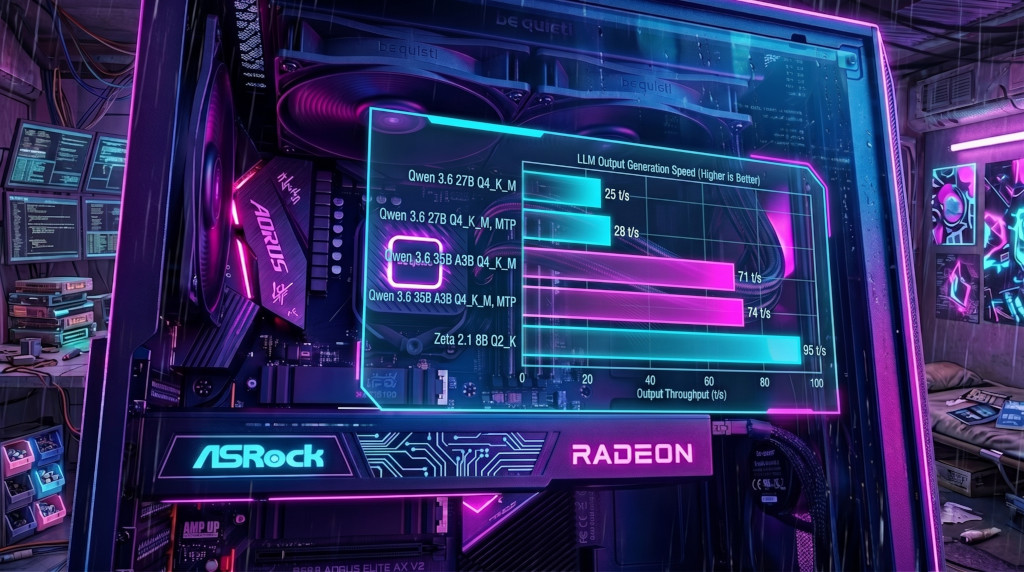
Here’s how everything benchmarks on my AMD Radeon AI PRO R9700 with ROCm 7.2:
| Model | Size | Quant | MTP/DF | Context | VRAM | Input | Output |
|---|---|---|---|---|---|---|---|
| qwen 3.8 | 27B | Q4_K_M | Yes | 131072 | 24 GB | 849 t/s | 42 t/s |
| qwen 3.6 | 27B | Q4_K_M | No | 131072 | 24 GB | 852 t/s | 31 t/s |
| qwen 3.6 | 27B | Q4_K_M | Yes | 131072 | 25 GB | 838 t/s | 43 t/s |
| ornith 1.5 | 35B A3B | Q4_K_M | No | 131072 | 25 GB | 3000 t/s | 77 t/s |
| ornith 1.5 | 35B A3B | Q4_K_M | Yes | 131072 | 26 GB | 2847 t/s | 112 t/s |
| ornith 1.5 | 9B | Q4_K_M | No | 131072 | 11 GB | 2698 t/s | 78 t/s |
| ornith 1.5 | 9B | Q4_K_M | Yes | 131072 | 12 GB | 2525 t/s | 98 t/s |
| gemma 4 | 31B | Q4_K_M | No | 131072 | 28 GB | 656 t/s | 24 t/s |
| gemma 4 | 26B A4B | Q4_K_M | No | 131072 | 23 GB | 3195 t/s | 132 t/s |
| gemma 4 | 12B | Q4_K_M | No | 131072 | 12 GB | 1654 t/s | 52 t/s |
| muse-glimmer | 30B | Q4_K_M | No | 131072 | 20 GB | 1158 t/s | 30 t/s |
| muse-glimmer | 30B | Q4_K_M | Yes | 131072 | 22 GB | 1062 t/s | 43 t/s |
| zeta 2.1 | 8B | Q4_K_M | No | 4096 | 6 GB | 2950 t/s | 90 t/s |
MTP (Multi-Token Prediction) makes LLM’s output noticeably faster while reducing memory consumption. For day-to-day coding with the Zed Agent, the 27B MTP variant is a nice balance of quality and speed.
Learn about model quality and compare it with other models you can find here or there.
Conclusion
This whole setup gives me everything I need for AI-assisted dev without depending on any external service. Zed Editor + Ollama + ROCm handles coding, chat, and browsing — all running locally on one GPU. API cost? Zero. And since everything lives on localhost, latency is basically nonexistent.
If you want to go deeper into the performance side of this setup, check out my previous post LLM performance on AMD Radeon AI PRO R9700.
Comments